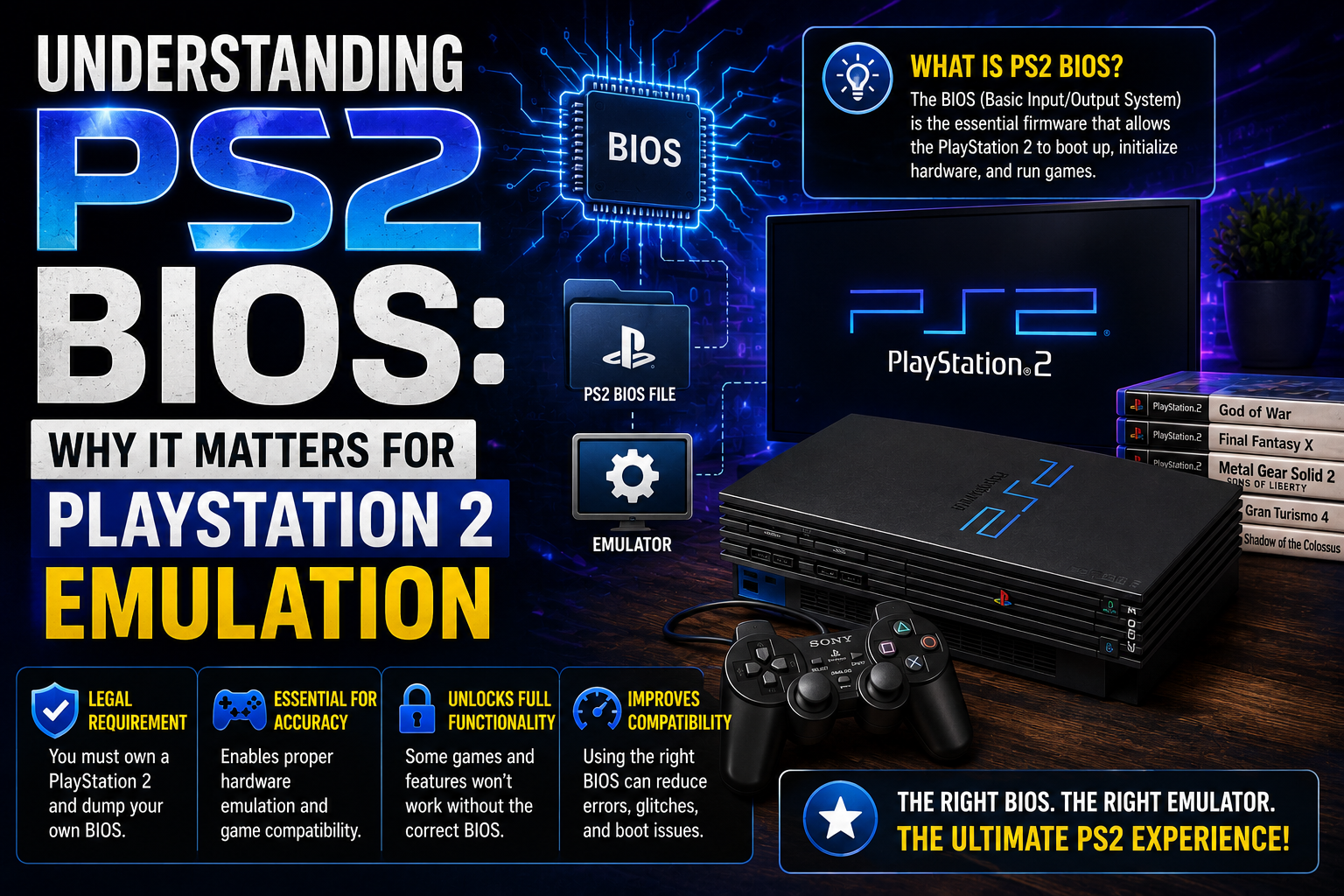
Understanding PS2 BIOS: Why It Matters for PlayStation 2 Emulation
The PlayStation 2 remains one of the most popular gaming consoles in gaming history. Even years after its release, many players still enjoy classic PS2 games on modern computers and compatible devices. Thanks to PlayStation 2 emulators, gamers can experience their favorite titles without needing the original console.
However, setting up a PS2 emulator involves more than simply installing the software. One important component is the BIOS file, which helps the emulator reproduce the basic system environment of the original PlayStation 2.
What Is a PS2 BIOS?
BIOS stands for Basic Input/Output System. In the PlayStation 2, it is firmware that helps the console initialize its hardware and perform essential startup operations.
When using a PlayStation 2 emulator, the BIOS plays an important role in recreating the original console environment. Without a compatible BIOS, some emulators may not start properly or may be unable to run games as expected.
The BIOS is separate from the emulator itself. The emulator recreates the console’s hardware behavior, while the BIOS provides important system-level functionality.
Why Is BIOS Important for PS2 Emulation?
A PlayStation 2 emulator needs several components to provide a smooth gaming experience. The BIOS is one of the key requirements because it helps the software behave more like the original console.
Here are some important reasons why it matters:
- System initialization: It supports essential startup processes.
- Compatibility: It helps the emulator reproduce the original PS2 environment.
- Game functionality: Certain emulator functions depend on having a compatible BIOS.
- Authentic experience: It helps maintain behavior closer to the original console.
The exact requirements may vary depending on the emulator and its version.
How to Prepare Your PS2 Emulator
Before playing classic PlayStation 2 games, it is important to configure the emulator correctly. A few basic steps can make the setup process easier.
1. Choose a Compatible Emulator
Start by selecting a reputable PS2 emulator that supports your operating system. Check its official documentation to understand system requirements and supported features.
2. Prepare the BIOS File
Some emulators require a PlayStation 2 BIOS obtained from a console you own. Make sure you follow applicable copyright laws and the emulator’s official instructions when preparing your firmware files.
If you need general information about the firmware and its role in emulation, you can explore this ps2 bios resource.
3. Configure the Emulator
Open the emulator settings and locate the BIOS configuration section. Select the appropriate firmware file according to the software’s instructions.
4. Adjust Graphics and Controls
Choose suitable graphics settings for your computer. You can also configure keyboard controls or connect a compatible game controller for a more comfortable experience.
5. Test Your Setup
Run a compatible game that you are legally entitled to use. If it does not start correctly, review the emulator’s configuration and troubleshooting documentation.
Common PS2 BIOS and Emulator Problems
Even after following the setup instructions, users may encounter technical issues. Understanding common problems can help identify the cause.
BIOS Not Detected: This may happen when the emulator is pointing to the wrong folder or cannot recognize the selected file. Check the file location and configuration settings.
Unsupported BIOS Version: Some emulator versions may require particular firmware configurations. Consult the emulator’s documentation for compatibility details.
Games Running Slowly: Performance problems can be related to hardware limitations, graphics settings, or emulator configuration rather than the BIOS itself.
Black Screen During Startup: Check whether the game file is compatible and whether the emulator has been configured correctly.
Tips for a Better Gaming Experience
A properly configured emulator can make classic gaming more enjoyable. Consider these practical tips:
- Keep your emulator updated using official : https://ps2bios-download.com/